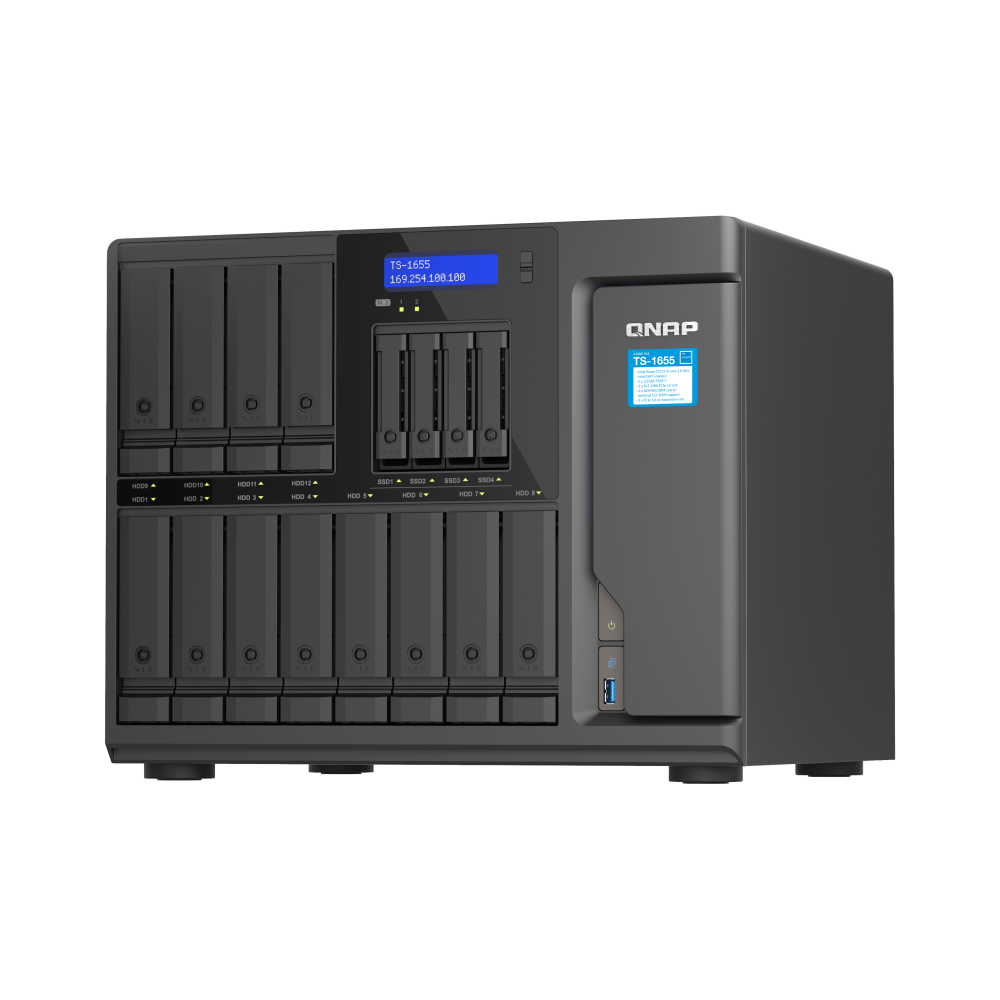
Synology Drive lets you mirror selected team folders between sites so each office can work locally and sync changes automatically.
Use it for distributed teams that share files daily and want the speed of local access.
When to use multi-site sync
Sync is best when edits happen in separate folders or when apps do not lock files extensively.
Two offices collaborating on shared projects
Studios with a main site and a satellite room
Retail or clinic sites that need common reference files
Topologies that work
Pick a shape that matches your locations and governance.
Two way between two offices
Hub and spoke where a central NAS publishes to branches
Separate sites linked over a VPN for private addressing
Requirements and preparation
Check versions, capacity, and connectivity before you start.
Install Synology Drive Server on the primary and enable team folders
Install Synology Drive ShareSync on partner sites
Reserve free space for versioning and recycle bins
Confirm stable DNS, time sync, and firewall rules
Plan folders, permissions, and conflicts
A little planning avoids surprises after go live.
Sync only what sites truly need, keep local archives out of scope
Use department based permissions and group membership
Decide conflict behaviour and educate users on conflict files
Seeding and first sync
Shorten first sync windows and reduce bandwidth spikes.
Seed by copying a baseline to portable storage and import at the remote site
Run the first sync after hours and monitor logs
Verify a sample set opens cleanly on both ends
Setup steps
A simple sequence to create a stable link.
Enable team folders on the primary site
On the remote site, add a connection in ShareSync and authenticate
Map source folders to destinations and select versioning options
Start sync and watch for initial errors
Bandwidth and scheduling
Keep links responsive for users while sync runs.
Throttle during business hours and lift at night
Exclude caches, temp files, and render folders
Schedule parity checks and backups outside sync peaks
Monitoring and troubleshooting
Stay ahead of issues with light routines.
Review ShareSync status and logs daily at first, then weekly
Enable email alerts for failures and conflicts
Document a rollback step using snapshots or backups
FAQs
Short answers to common questions.
Is this for databases - avoid live databases, use app aware replication instead
Can I pause a site - yes, pause and resume during maintenance windows
Do permissions sync - user folders and permissions map when directory services align
Need technical support or more detailed guidance? Please contact Synology via our Synology Support – Australia page. It includes ticket, Live Chat, warranty and downloads links.
Synology Drive Multi-site Sync in Australia: Planning and setup
Posted By Ethan Ro
on
We’re Here for You
Whether it’s setup, troubleshooting, or custom solutions or simply tracking your order — we’ve got you covered.