



















External Access with Reverse Proxy on Synology in Australia: Setup and best practices
Use a reverse proxy so users reach friendly URLs while the NAS stays private behind a single entry point.
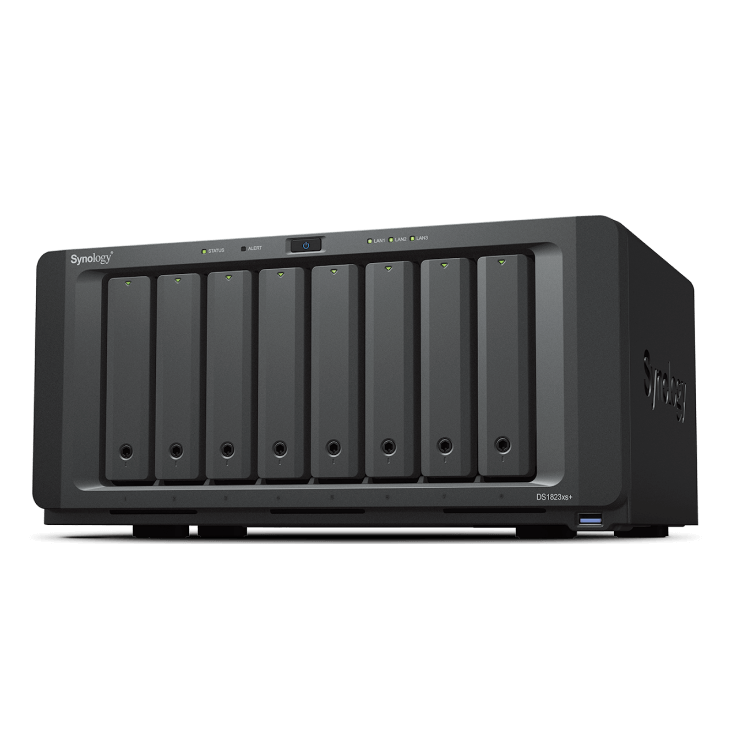
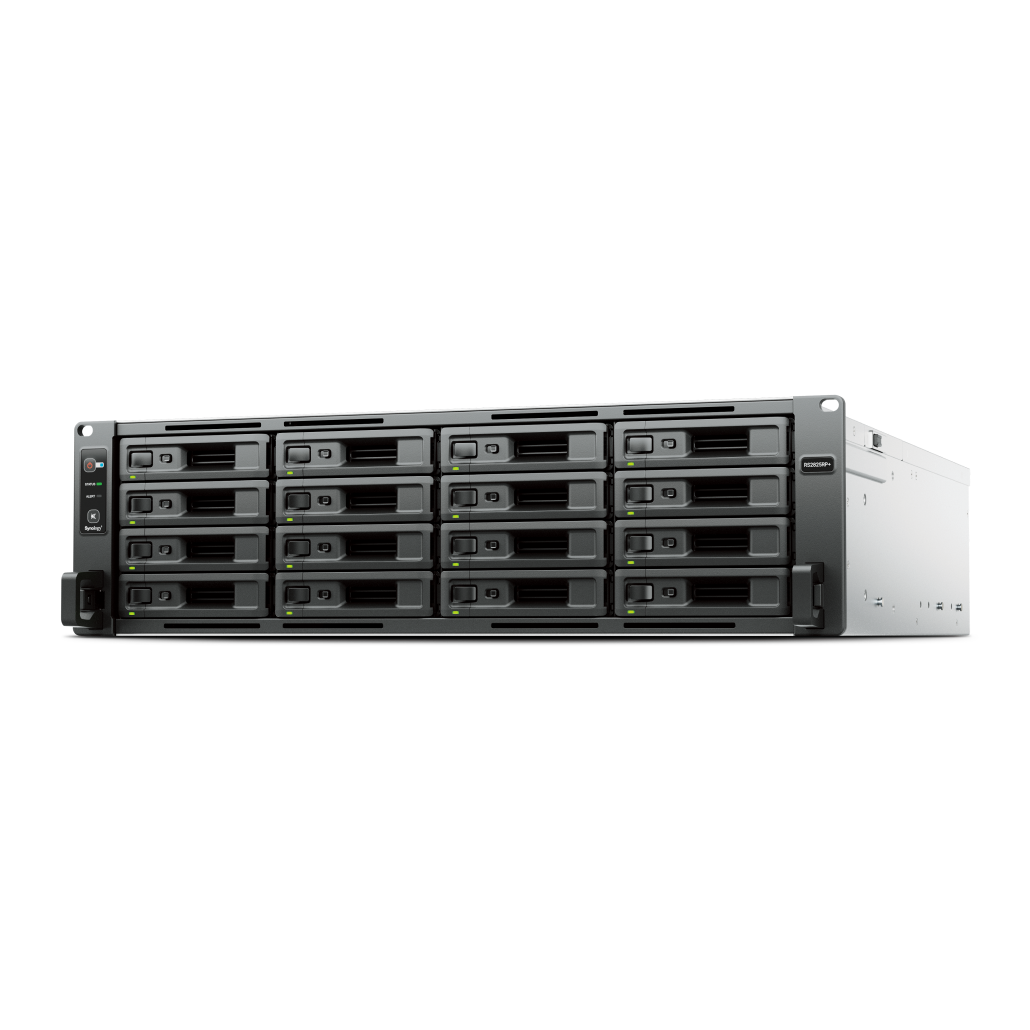
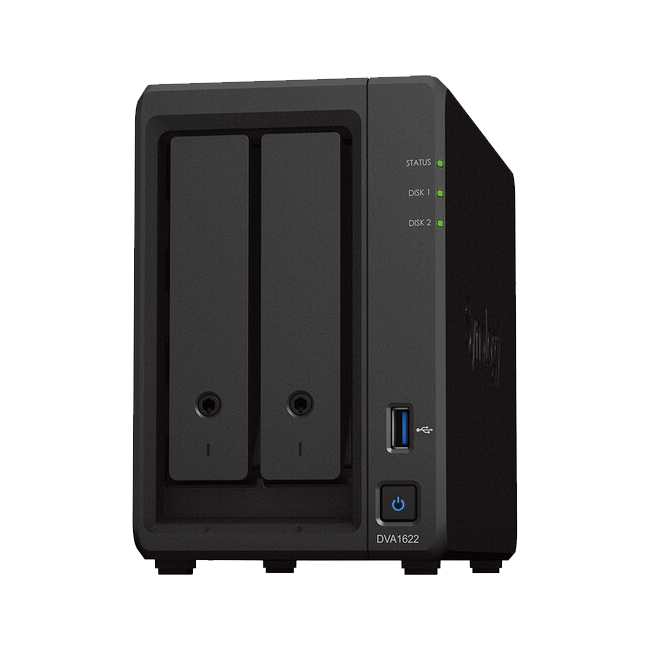
See Synology NAS range
Explore models suited to home, creators, and small business in Australia.
Browse SynologyOverview
Reverse proxy lets you publish internal apps on friendly subdomains without exposing ports directly.
You route traffic through a single HTTPS entry and forward to services internally.
Why use a reverse proxy
Benefits for small offices and families.
- Single point for TLS certificates and renewals
- Consistent URLs like photos.example.com and drive.example.com
- Layered access control with authentication and headers
Prerequisites
Make sure your base setup is ready.
- A domain you control
- Public DNS management access
- Router that can forward 80 and 443 to the NAS or an upstream reverse proxy
Domain and DNS
Create subdomains for each published service.
- Add A or CNAME records for each app subdomain
- Use dynamic DNS if your ISP changes your IP
- Keep TTLs modest during testing
Certificates
Use valid certificates for HTTPS to avoid warnings.
- Use DSM to request Let's Encrypt certificates per subdomain
- Renew automatically and set alert emails
- Use a wildcard certificate when convenient
Create reverse proxy rules
Map external hostnames to internal apps.
- In Control Panel open Login Portal then Reverse Proxy
- Create a rule with source host and port 443 and target internal host and port
- Preserve host headers and enable HSTS where appropriate
Access control and authentication
Add sign in gates to sensitive services.
- Use DSM authentication or SSO where available
- Restrict by IP for admin paths
- Limit public links and set expiries
Security headers and rate limits
Set sane defaults for safer publishing.
- Enable HSTS and redirect all HTTP to HTTPS
- Add basic rate limits for login paths if supported
- Keep packages and DSM updated
Testing and validation
Verify behaviour before inviting users.
- Open each URL from outside the network
- Check certificate validity and the padlock
- Try expired or wrong credentials to confirm safe failure
Troubleshooting checklist
If a site will not load or loops, check these items.
- DNS records and propagation
- Router port forward to the NAS
- Reverse proxy rule host and port mapping
- Certificate assignment per virtual host
FAQs
Short answers for planning and operation.
- Is QuickConnect enough? Reverse proxy gives more control over URLs and headers
- Do I need a static IP? Dynamic DNS works for many homes
- Can I use a separate reverse proxy? Yes with a small VM or router based proxy
Need technical support or more detailed guidance? Please contact Synology via our Synology Support – Australia page. It includes ticket, Live Chat, warranty and downloads links.