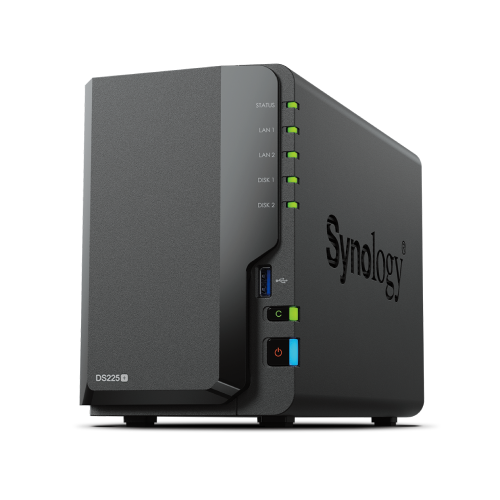
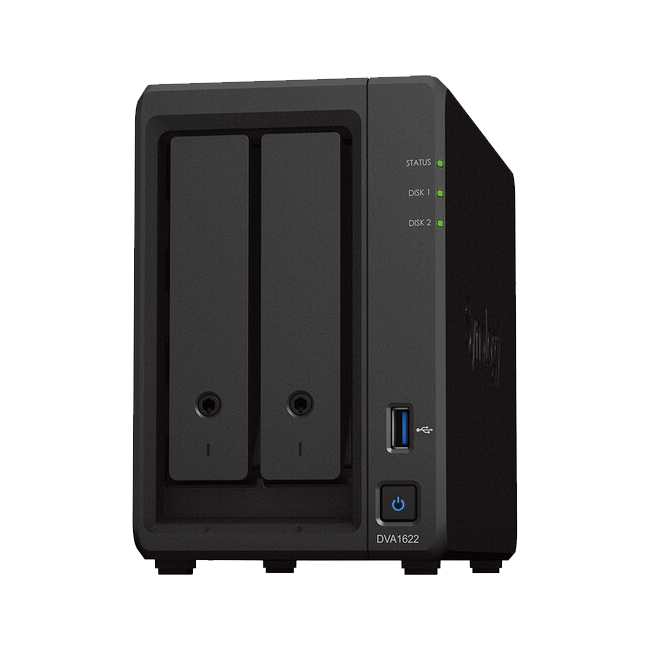
QuickConnect allows secure remote access to your NAS services without manual port forwarding on your router.
It is designed to balance simplicity with security for home users and small teams.
Pros and cons
Use this quick view to decide if QuickConnect suits your environment.
Pros - simple setup, works across many ISPs, no router changes needed
Cons - performance depends on internet paths, fewer advanced routing options than a full VPN
Setup steps
Enable the service and test access from an external network before relying on it.
Create or sign in to a Synology account on the NAS
Enable QuickConnect in Control Panel and choose a unique ID
Select which services to expose such as Photos or Drive
Test access from mobile data or a different network
Security best practices
Keep remote access safe with a few simple controls.
Use strong passwords and two factor authentication for admin accounts
Restrict which apps are exposed and review them quarterly
Enable security notifications and keep DSM updated
Troubleshooting checklist
If access fails, check these items first.
Verify the QuickConnect ID and account status
Confirm the NAS has outbound internet access and correct DNS
Check that the chosen apps are enabled for QuickConnect
Try from a second device to rule out client issues
FAQs
Helpful answers for common questions.
Is QuickConnect secure for photos and files? Yes when you use up to date software and strong sign in
Should I use a VPN instead? Use VPN for admin and complex routing, QuickConnect for simple user access
Does it work on mobile? Yes through the official apps and web portals
Need technical support or more detailed guidance? Please contact Synology via our Synology Support – Australia page. It includes ticket, Live Chat, warranty and downloads links.
Synology QuickConnect: Remote access setup guide for Australia
Posted By Ethan Ro
on
We’re Here for You
Whether it’s setup, troubleshooting, or custom solutions or simply tracking your order — we’ve got you covered.