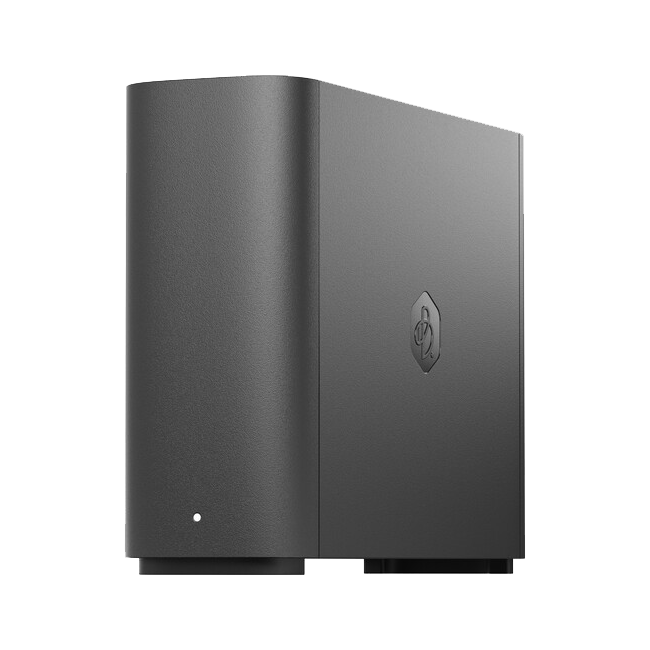
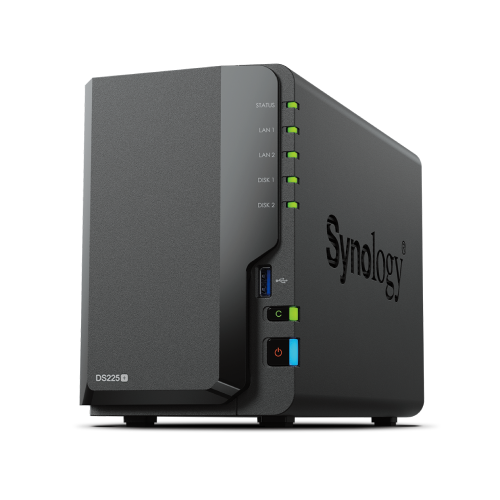
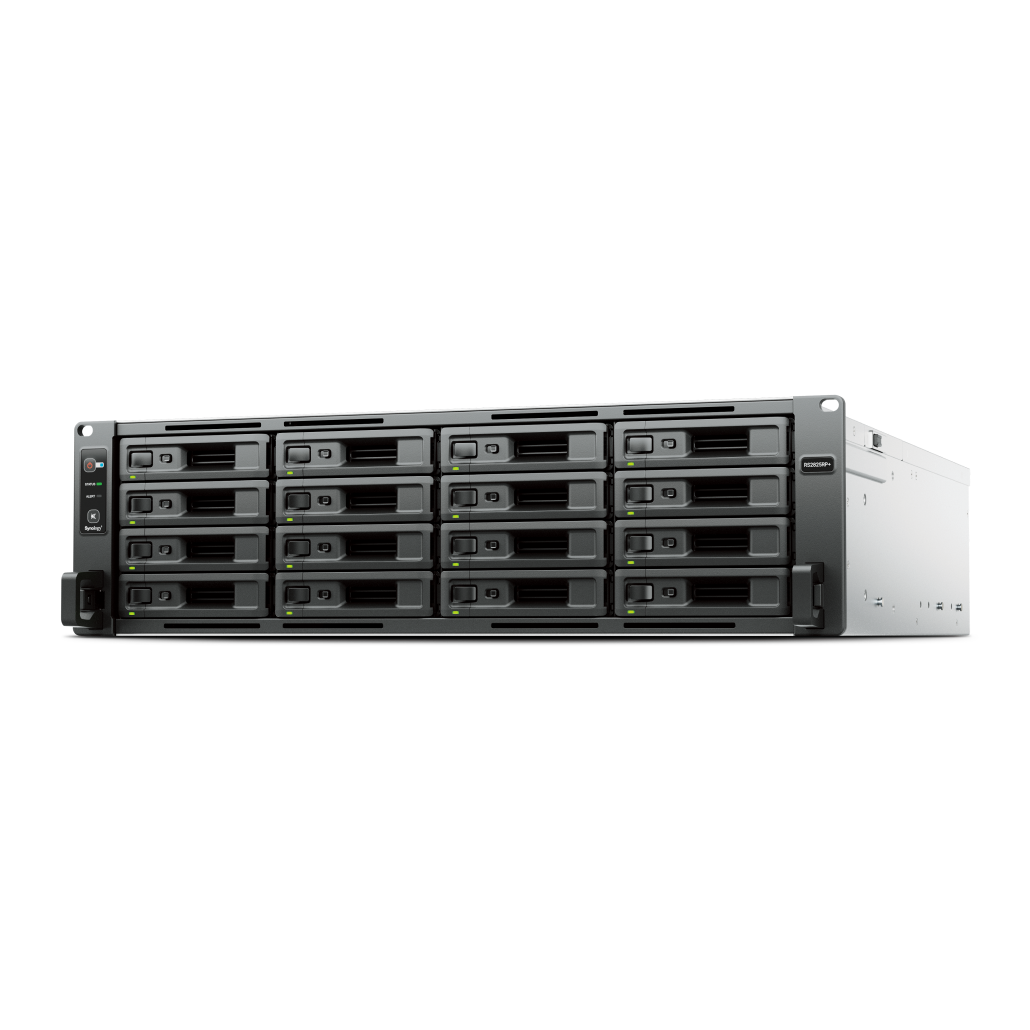
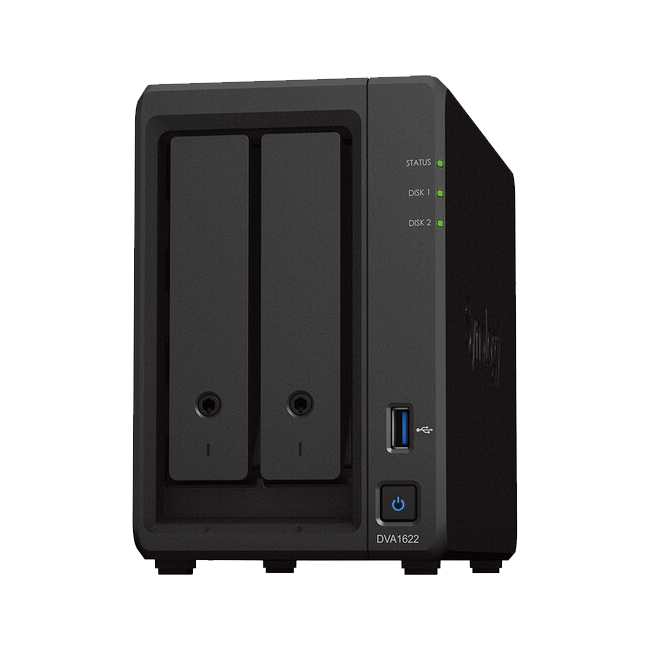
Time Machine works well with a Synology NAS when you create a dedicated SMB share and apply quotas.
Use individual accounts so you can audit access and manage storage per user.
Prerequisites and planning
Decide who will use Time Machine and how much space each Mac can consume.
Create a user on the NAS for each Mac
Calculate a quota per user based on internal drive size and growth
Update DSM to the latest stable version
Create the Time Machine share
Create a new shared folder and enable the Time Machine service on SMB.
Create a shared folder named TimeMachine or similar
Enable the share for Time Machine in File Services
Assign per user quotas and permissions
Enable SMB signing only if required and supported by clients
Configure Time Machine on macOS
Point each Mac at the NAS and start the first backup during low usage hours.
Open Time Machine settings and choose Select Backup Disk
Pick the NAS share and authenticate with the user created for that Mac
Start the initial backup while on wired Ethernet where possible
Verify the next scheduled backup completes automatically
Quotas and retention planning
Quotas prevent a single Mac from consuming all NAS space.
Set a quota near 150 to 200 percent of the Mac internal drive size
Keep snapshots on the NAS for quick rollback of the backup share
Review space use quarterly and adjust quotas as staff change
Network and performance tips
Most issues are path or WiFi related rather than Time Machine itself.
Use wired Ethernet for the first backup
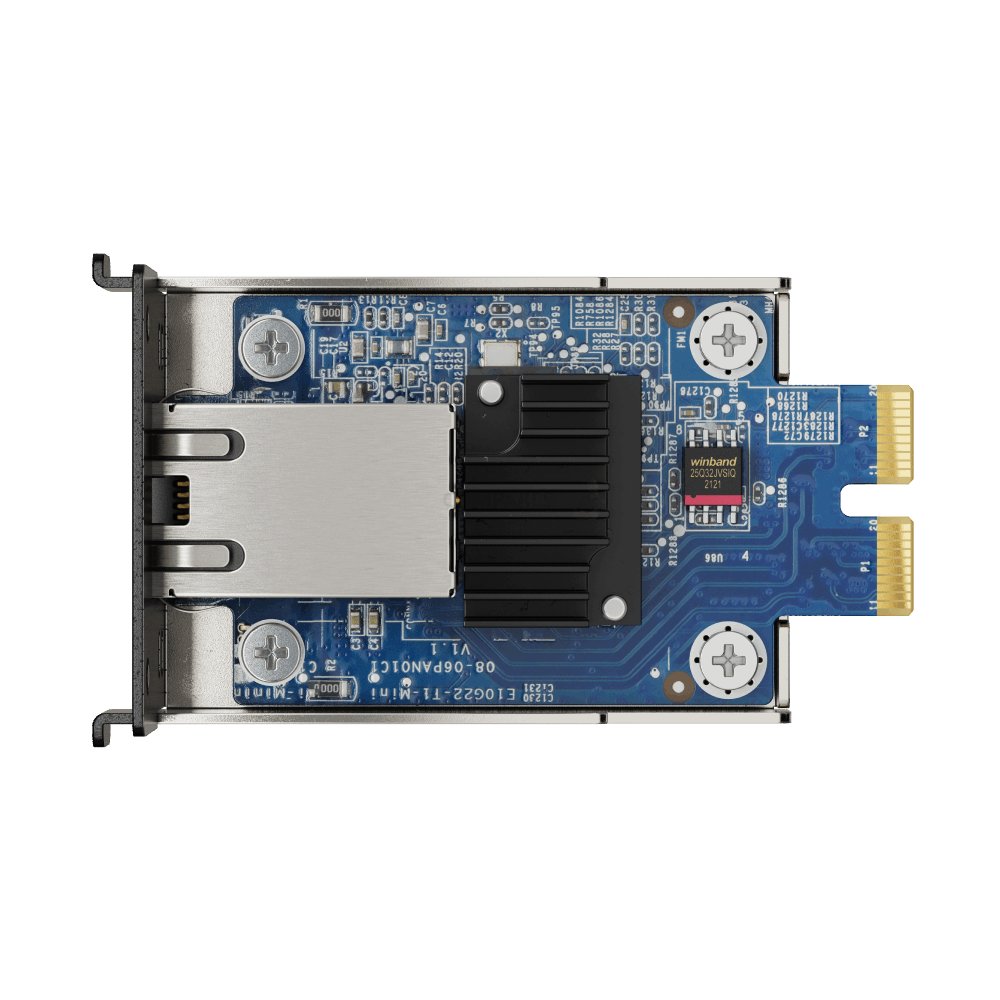
Adopt 2.5 GbE on the NAS and main Mac for faster transfers
Avoid heavy WiFi use during large backups
Troubleshooting checklist
Use this list if backups stall or fail.
Verify credentials and share permissions
Check that the NAS share is still selected in Time Machine
Review network links and switch port status
Create a test file restore to confirm integrity
FAQs
Helpful answers to common questions.
Is encryption supported? Yes at the Time Machine level when enabled on the Mac
Do we need AFP? Use SMB for current macOS versions
Can multiple Macs back up to the same share? Yes with per user accounts and quotas
Need technical support or more detailed guidance? Please contact Synology via our Synology Support – Australia page. It includes ticket, Live Chat, warranty and downloads links.
Time Machine Backup to Synology NAS in Australia: Setup and troubleshooting
Posted By Ethan Ro
on
We’re Here for You
Whether it’s setup, troubleshooting, or custom solutions or simply tracking your order — we’ve got you covered.